Friday, November 27, 2015

SharePoint remote event receivers returning 405 (Method not allowed)

The SharePoint app* infrastructure is a notably fickle beast. I've seen grown system administrators reduced to tears by obtuse error messages and exotic requirements which don't fit company infrastructure policies (wildcard certificates, no support for SSL offloading, multiple IP's or NICs etc etc.).

This week I was confronted by a new one. A provider hosted app we were deploying was unable to register remote event receivers (which we do from another remote event receiver triggered by the app installed event). The provider hosted app returned http error 405 (method not allowed). The relevant section of the ULS:

Error when get token for app i:0i.t|ms.sp.ext|xxxxxxxx-xxxx-xxxx-xxxx-xxxxxxxxxxxx@xxxxxxxx-xxxx-xxxx-xxxx-xxxxxxxxxxxx, exception: Microsoft.SharePoint.SPException: The Azure Access Control service is unavailable.    
 at Microsoft.SharePoint.ApplicationServices.SPApplicationContext.GetApplicationSecurityTokenServicesUri(SPServiceContext serviceContext)    
 at Microsoft.SharePoint.ApplicationServices.SPApplicationContext..ctor(SPServiceContext serviceContext, SPIdentityContext userIdentity, OAuth2EndpointIdentity applicationEndPoint)     

Calling remote event receiver failed. URL = [https://xxxxxxxxxxxxxx.com/xxxx/Services/AppEventReceiver.svc], App Identifier = [i:0i.t|ms.sp.ext|xxxxxxxx-xxxx-xxxx-xxxx-xxxxxxxxxxxx@xxxxxxxx-xxxx-xxxx-xxxx-xxxxxxxxxxxx], Event Type = [AppInstalled], Exception = [The remote server returned an unexpected response: (405) Method Not Allowed.] 


The message that jumped at me directly is "The Azure Access Control service is unavailable". I'd hope so with my on premises SharePoint and provider hosted app deployment! This message however is a red herring and expected in an on premises configuration. I found multiple other possible reasons for a 405, including;
  • Certificate problems
  • SSL / TLS supported version mismatch between App server and SharePoint server
  • No handler in IIS for the incoming request

As the famous detective states; "when you have eliminated the impossible, whatever remains, however improbable, must be the truth". It turned out the App Server was missing a feature, specifically the ".Net Framework 4.5 > WCF Services > HTTP Activation" feature:


Adding this one allowed me to finally install the App. It's not clear why the feature was not installed, it was in the install scripts for the App server.


I hope if you're confronted by this 405 you'll find this post, and spend less time on it then I did.


* note the deliberate use of 'App' instead of 'Add-in'. It will require me some time to make the mental switch.

Sunday, July 12, 2015

Configuring metadata defaults with CSOM

SharePoint folders have had it rough the last couple of years. The internet is full of 'folders are evil' posts, but in my view folders still have their uses. One of the interesting features SharePoint folders bring to the table is automatically setting metadata. Per folder you can configure which default values fields should have. This can be a great enabler when people don't want to tag documents manually.

We wanted to use this in a recent project where we had the requirement to provision and configure this from code. The metadata defaults objects however are only available in the full trust object model, and we build for SharePoint online. That leaves us with the puzzle of what actually happens when you configure metadata defaults and figuring out if we can do the same from CSOM. We found that metadata defaults functionality is implemented through two components:

  • The 'client_LocationBasedDefaults.html' file in the forms folder of the document library
  • A feature receiver bound to the same document library


The following screenshots are from an environment that's been configured manually. We have our document library 'Metadata'. This library has two folders, 'Yes' and 'No'. A choice field with the same options is added to the library and has been configured to be set automatically for files that are added to the folders.


With SharePoint designer we can view the contents of the 'client_LocationBasedDefaults.html'. It's basically a mapping of the folder (url), the field to be set, and the field value to be set. All this in a very simple XML structure.

The event receiver can be spotted using the great tool SharePoint Manager 2013. It's interesting to note that the event receiver is part of the "Microsoft.Office.DocumentManagement" namespace, the same namespace that gives us the Document Set which is also great folder and metadata tool.

Well, this doesn't appear to be to hard to do through CSOM! First we need to create the metadata file. The hidden forms folder in the library has the interesting property that you can add files to it just as you would do to any other folder. The following snippet is all you need:
// Creating the LocationBasedDefaults file in the forms folder. Will overwrite if it is already there.
var formsFolder = ctx.Web.GetFolderByServerRelativeUrl("/Metadata/Forms/");
var fci = new FileCreationInformation();
fci.Content = Encoding.UTF8.GetBytes("<MetadataDefaults><a href=\"/Metadata/No\"><DefaultValue FieldName=\"YesNo\">No</DefaultValue></a><a href=\"/Metadata/Yes\"><DefaultValue FieldName=\"YesNo\">Yes</DefaultValue></a></MetadataDefaults>");
fci.Url = "client_LocationBasedDefaults.html";
fci.Overwrite = true;
var metaDataFile = formsFolder.Files.Add(fci);

ctx.Load(metaDataFile);
ctx.ExecuteQuery();


After this we need to bind the out of the box event receiver. Note that we explicitly configure the event receiver to be synchronous. If you don't, the user will need to refresh the screen after dragging a document to the library to see the updated value. The following snippet has all the code required for this:
//Binding the OOTB event receiver
var list = ctx.Web.Lists.GetByTitle("Metadata");
var erci = new EventReceiverDefinitionCreationInformation();

erci.ReceiverName = "LocationBasedMetadataDefaultsReceiver ItemAdded";
erci.SequenceNumber = 1000;
erci.ReceiverClass = "Microsoft.Office.DocumentManagement.LocationBasedMetadataDefaultsReceiver";
erci.ReceiverAssembly = "Microsoft.Office.DocumentManagement, Version=15.0.0.0, Culture=neutral, PublicKeyToken=71e9bce111e9429c";
erci.EventType = EventReceiverType.ItemAdded;
erci.Synchronization = EventReceiverSynchronization.Synchronous;

var receiver = list.EventReceivers.Add(erci);
ctx.Load(receiver);
ctx.ExecuteQuery();


And that's all there is to it. It's also possible to do this with Managed Metadata values. However, to get these to work you need to ensure they're already in the taxonomy hidden list on the site you are deploying this to. That's slightly out of scope for this write-up, but let me know if you run into trouble with that.

Attached: A full demo project for a provider hosted app which creates and configures a document library with managed metadata defaults.

Friday, October 11, 2013

CSOM API overcomplete on MSDN

The SharePoint product team faces a daunting task in keeping the MSDN library on SharePoint API's up to date. Especially now we have the Server Side Object Model, Client Side Object Model and the JavaScript Object Model. Although the documentation for these API's may be sparse at points, it at least tries to cover the entire object model, which is a good thing. Next to that there is also the REST API, which is so badly documented that complex solutions become nearly impossible.

Recently I found some weird things in the CSOM documentation. There are some methods in the API which do not exist in reality. I've checked this against the client dll's that came with my SharePoint install, and against the latest version of the Client SDK.

Are these methods yet to come? Or have they been scrapped somewhere in the development process? If you know more, post below :)

Friday, September 27, 2013

Checking for changed properties of an SPWeb

The SPWeb object is one of the places where a lot of the SharePoint magic happens. Many changes performed through the UI or through features are persisted there. When refactoring behavior it's often useful to compare the state of the SPWeb object before and after an update. I've created a small powershell scrip to facilitate this. It reads all the properties of the SPWeb and all the properties in the property bag. It then pauses, allowing you to do whatever you have to. Then the script gets the properties again and outputs the differences. Let me know if it helps you.

Of course, all the regular legal stuff applies. Use at your own risk. I do not accept any liability for what happens when you run this script. And never, never, run a random script you've downloaded from the internet against a production environment without properly testing and examining it.


param(
 [string]$WebUrl = $(throw "WebUrl required.")
)
 
#Region [ Load Assemblies ]
$spNotFoundMsg = "SharePoint not found. Run this script from a SharePoint server that is part of the farm where you want to update your content types"
 
if ([Reflection.Assembly]::LoadWithPartialName("Microsoft.SharePoint") -eq $null)     { throw $spNotFoundMsg; }
if ([Reflection.Assembly]::LoadWithPartialName("Microsoft.Office.Server") -eq $null)    { throw $spNotFoundMsg; }
if ([Reflection.Assembly]::LoadWithPartialName("System.Xml.Linq") -eq $null)      { throw $spNotFoundMsg; }
if ([Reflection.Assembly]::LoadWithPartialName("Microsoft.Office.Server") -eq $null)    { throw $spNotFoundMsg; }
if ([Reflection.Assembly]::LoadWithPartialName("Microsoft.Office.Server.UserProfiles") -eq $null) { throw $spNotFoundMsg; }
if ([Reflection.Assembly]::LoadWithPartialName("Microsoft.SharePoint.Taxonomy") -eq $null)   { throw $spNotFoundMsg; }
 
$snapin = Get-PSSnapin | Where-Object {$_.Name -eq 'Microsoft.SharePoint.Powershell'}
if ($snapin -eq $null)
{
   Write-Output "Loading Microsoft SharePoint Powershell Snapin"
   Add-PSSnapin "Microsoft.SharePoint.Powershell"
} 
#endregion 

$web = get-SPWeb $WebUrl

$oldProperties = $web.AllProperties.Clone()

$web | % { foreach ($property in $_.PSObject.Properties) { $oldProperties.Add("SPWeb." + $property.Name, $_.PSObject.properties[$property.Name].Value -as [string]) }}

$web.Dispose()

Write-Host "We have grabbed a copy of the properties as they are now. Make your change, and press any key to continue.."

While ($KeyInfo.VirtualKeyCode -Eq $Null) {
        $KeyInfo = $Host.UI.RawUI.ReadKey("NoEcho, IncludeKeyDown")
}

$web = get-SPWeb $WebUrl

$newProperties = $web.AllProperties.Clone()
$web | % { foreach ($property in $_.PSObject.Properties) { $newProperties.Add("SPWeb." + $property.Name, $_.PSObject.properties[$property.Name].Value -as [string]) }}


$updates = 0
$additions = 0

foreach ($h in $newProperties.Keys) {
    
    $newValue = $newProperties.Item($h)

    if ($oldProperties.Keys.Contains($h))
    {
        $oldValue = $oldProperties.Item($h)
        if ($oldValue -ne $newValue)
        {
            $updates++
            Write-Host "`nFound an update in the property '$h'.`n'$oldValue'`nbecame`n'$newValue'"
        }
    }    
    else
    {
        $additions++
        Write-Host "`nFound an new property '$h', with the following value:`n'$newValue'"
    }
}
Write-Host "Found $updates updates and $additions additions"
$web.Dispose()

Thursday, August 22, 2013

Errors while deploying sandboxed solutions

There are lots of posts out there dealing with the various troubles you can run into when trying to get your sandboxed solutions to work as they should. Most focus on getting the User Code Host to start and they do a pretty good job explaining that.

However, there is one scenario that doesn't appear to get as much attention as it should; what happens when you don't use the farm account for the sandbox service. By default, SharePoint uses the farm account for the User Code Service. However, Microsoft advises us wisely to use separate accounts for separate services. This allow for a better management of privileges. Never is this requirement more clear then when you are configuring a sandbox. Using the farm account, which has a lot of privileges, partially defeats the purpose of having sandbox has in the first place.

So, we see more and more production servers with separate accounts for the user code service, which is a good thing. However, developers are also exposed to this and get errors they don't understand:

When deploying by hand you might see the following in the ULS:
Failed to load receiver assembly "-------------, Version=1.0.0.0, Culture=neutral, PublicKeyToken=-----------------" for feature "-----------------" (ID: ------------------------------).: System.IO.FileNotFoundException: Could not load file or assembly '-------------, Version=1.0.0.0, Culture=neutral, PublicKeyToken=-----------------' or one of its dependencies. The system cannot find the file specified.  File name: '-------------, Version=1.0.0.0, Culture=neutral, PublicKeyToken=-----------------'    
 at System.Reflection.RuntimeAssembly._nLoad(AssemblyName fileName, String codeBase, Evidence assemblySecurity, RuntimeAssembly locationHint, StackCrawlMark& stackMark, IntPtr pPrivHostBinder, Boolean throwOnFileNotFound, Boolean forIntrospection, Boolean suppressSecurityChecks)    
 at System.Reflection.RuntimeAssembly.InternalLoadAssemblyName(AssemblyName assemblyRef, Evidence assemblySecurity, RuntimeAssembly reqAssembly, StackCrawlMark& stackMark, IntPtr pPrivHostBinder, Boolean throwOnFileNotFound, Boolean forIntrospection, Boolean suppressSecurityChecks)    
 at System.Reflection.RuntimeAssembly.InternalLoad(String assemblyString, Evidence assemblySecurity, StackCrawlMark& stackMark, IntPtr pPrivHostBinder, Boolean forIntrospection)    
 at System.Reflection.RuntimeAssembly.InternalLoad(String assemblyString, Evidence assemblySecurity, StackCrawlMark& stackMark, Boolean forIntrospection)    
 at System.Reflection.Assembly.Load(String assemblyString)    


Or when deploying from visual studio:
Error occurred in deployment step 'Add Solution': Unable to load assembly group. The user assembly group provider threw an exception while trying to provide user assemblies for the specified assembly group.


I wrote this up because I found a lot of posts online which advised you to change the service account for the sandbox service (by hand, through services.msc no less!). Don't do this. The solution is the easiest part of this post: Grant the sandbox service account full control on the webapplication(s) you wish to deploy your sandboxed solutions to. No reboots, recycles or any wait required.

Monday, April 29, 2013

Fixing folders that have been converted into document sets

SharePoint 2010 saw the introduction of 'Document Sets'. In my opinion these are the greatest improvement in document management since the stapler. The concept is very simple; you create sets of documents. These sets have their own introduction page, where you can leave relevant info. Also, the documents in the set can share metadata properties and the set itself can have distinct properties which may or may not get pushed down to the documents in the set.

Under the hood, these document sets are nothing more than the old fashioned folders on steroids. This becomes clear when you change the content type for a folder. If you have enabled the document sets site feature, and added the document set content type to your library, you can change folders into document sets. This is especially useful in migration scenario's, if you were already using folders for the same purposes you now would like to use document sets for.

However, the result of this content type switch is not the same as when you create a new document set. Some properties do not update correctly. The resulting document set does not get its landing page and it doesn't get the pretty icon. The culprit is the ProgId property, which should be set to 'SharePoint.DocumentSet'. This property is used by SharePoint to launch the correct program when you open a document (such as a Word or Excel document).

You can go one of two ways in fixing an issue like this. You can create an event receiver which sets the property correctly when the change is made. This is the approach used in a project on codeplex, SharePoint 2010 Folder To Document Set Conversion Fix, by Robert R. Freeman. The main advantage of this solution is that it will fix the document set the moment you update it. A drawback is that you need to deploy custom code, which isn't always an option. Also, folders that have had their content type updated in the past are not fixed

A second solution is to just script it, and fix the document sets that are not functioning correctly in one go. For this you can use the script below.

Of course, all the regular legal stuff applies. Use at your own risk. I do not accept any liability for what happens when you run this script. And never, never, run a random script you've downloaded from the internet against a production environment without properly testing and examining it.

param(
 [string]$WebUrl = $(throw "WebUrl required."),
    [string]$ListName = $(throw "ListName required."),
    [bool]$disableEventFiring = $false
)

#Region [ Load Assemblies ]
$spNotFoundMsg = "SharePoint not found. Run this script from a SharePoint server that is part of the farm where you want to update your content types"

if ([Reflection.Assembly]::LoadWithPartialName("Microsoft.SharePoint") -eq $null)     { throw $spNotFoundMsg; }
if ([Reflection.Assembly]::LoadWithPartialName("Microsoft.Office.Server") -eq $null)    { throw $spNotFoundMsg; }
if ([Reflection.Assembly]::LoadWithPartialName("System.Xml.Linq") -eq $null)      { throw $spNotFoundMsg; }
if ([Reflection.Assembly]::LoadWithPartialName("Microsoft.Office.Server") -eq $null)    { throw $spNotFoundMsg; }
if ([Reflection.Assembly]::LoadWithPartialName("Microsoft.Office.Server.UserProfiles") -eq $null) { throw $spNotFoundMsg; }
if ([Reflection.Assembly]::LoadWithPartialName("Microsoft.SharePoint.Taxonomy") -eq $null)   { throw $spNotFoundMsg; }

$snapin = Get-PSSnapin | Where-Object {$_.Name -eq 'Microsoft.SharePoint.Powershell'}
if ($snapin -eq $null)
{
   Write-Output "Loading Microsoft SharePoint Powershell Snapin"
   Add-PSSnapin "Microsoft.SharePoint.Powershell"
} 
#endregion 


Start-SPAssignment -Global

$web = Get-SPWeb $WebUrl -EA 1 

$list = $web.Lists[$ListName]
if ($list -eq $null) { throw "List '$ListName' not found at '$WebUrl'" }

Write-Host "Found list '$ListName' at '$WebUrl'" -ForeGroundColor Green


if($disableEventFiring)
{
    Write-Host "Disabling event firing" -ForeGroundColor Yellow
    $myAss = [Reflection.Assembly]::LoadWithPartialName("Microsoft.SharePoint");
    $type = $myAss.GetType("Microsoft.SharePoint.SPEventManager");
    $prop = $type.GetProperty([string]"EventFiringDisabled",[System.Reflection.BindingFlags] ([System.Reflection.BindingFlags]::NonPublic -bor [System.Reflection.BindingFlags]::Static));
    $prop.SetValue($null, $true, $null);
}

$count = 0
$folderCollection = $list.Folders
foreach($folder in $folderCollection)
{
    if ($folder.ContentType.Id.ToString().StartsWith("0x0120D520"))
    {   
        if($folder.ProgId -ne "SharePoint.DocumentSet")
        {
            Write-Host "Found a document set to fix:" $folder.Title -ForeGroundColor Yellow
            
            $folder.ProgId = "SharePoint.DocumentSet"
            $folder.Update()
            $documentSet = [Microsoft.Office.DocumentManagement.DocumentSets.DocumentSet]::GetDocumentSet($folder.Folder)
            $documentSet.Provision()
            
            Write-Host "Document set" $folder.Title "is fixed" -ForeGroundColor Green
            $count++
        }
    }
}

if ($count -eq 0)
{
    Write-Host "Found no document sets requiring an update!" -ForeGroundColor Yellow
}
else
{
    Write-Host "Updated $count document sets!" -ForeGroundColor Green
}

Stop-SPAssignment -Global


<#
.SYNOPSIS
Fix document sets in a SharePoint library

.DESCRIPTION
When manually updating the content type of a folder to a document set, not
all properties are propertly updated by SharePoint. This script fixes these
broken document sets. This script can be run more than once.

.PARAMETER WebUrl
Specifies the url the web hosting the document sets to fix

.PARAMETER ListName
Specifies the display name of the library holding the document sets 
to fix

.PARAMETER disableEventFiring
Optional parameter. Set to $True to prevent the update from firing 
events for event receivers. Can be useful in custom code scenario's

.INPUTS
None. You cannot pipe objects to DocumentSetFixer.ps1.

.OUTPUTS
None. DocumentSetFixer.ps1 does not generate any output.

.EXAMPLE
C:\PS> .\DocumentSetFixer.ps1 -WebUrl "http://mysitecollection/myweb" -ListName "Shared Documents"
Fix all documents sets in the library "Shared Documents" on the 
SharePoint web at "http://mysitecollection/myweb".

.EXAMPLE
C:\PS> .\DocumentSetFixer.ps1 -WebUrl "http://mysitecollection/myweb" -ListName "Shared Documents" -disableEventFiring $true
Fix all documents sets in the library "Shared Documents" on the 
SharePoint web at "http://mysitecollection/myweb". This fix will not 
trigger event receivers on the document sets.

.LINK
Developed by: http://www.vxcompany.com

#>

Wednesday, November 23, 2011

"Authenticated users" and the taxonomy hidden list

When provisioning a new SharePoint site, a few groups are automatically created for you. With most templates you automatically get a visitors, members and owners group. On publishing sites and record centers you get a lot more.

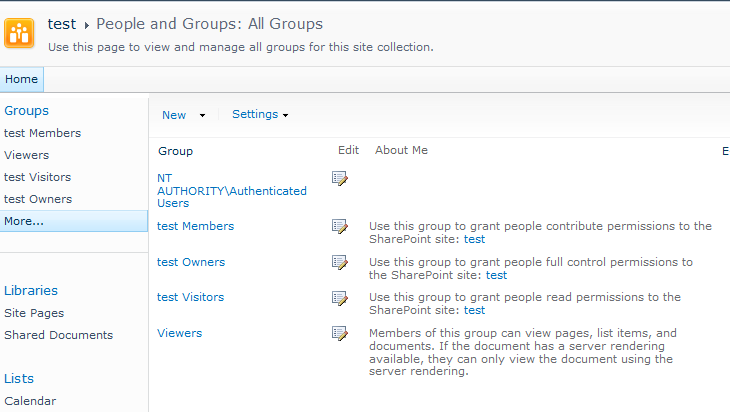
For a new Team Site, the "All Groups" page initially looks like this:


5 groups, most of them are pretty obvious. But what is this "Authenticated Users" group doing here? Basically, this is a group that is available through IIS and contains every user that can be authenticated by IIS, i.e., have their identity verified. For instance, all AD users automatically fall into this category.

From TechNet:
SID: S-1-5-11
Name: Authenticated Users
Description: A group that includes all users whose identities were authenticated when they logged on. Membership is controlled by the operating system.

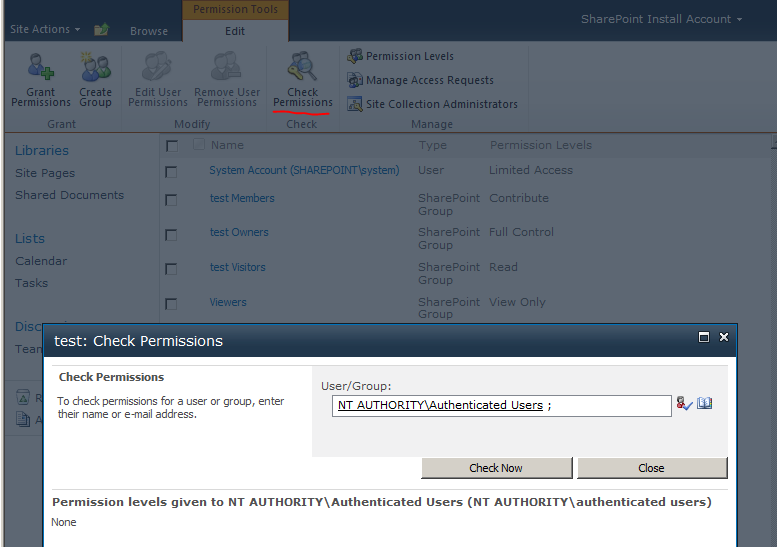
If you want to know what permissions a group has within your site, SharePoint 2010 offers us the very useful "Check Permissions" option in the Site Permissions screen:


This shows us the Authenticated Users haven't got any permissions on our site.

So... an over-active user with spring cleaning in mind, could be forgiven for deleting this group from the site collection. This is pretty easy and you only get a very nondescript warning message:


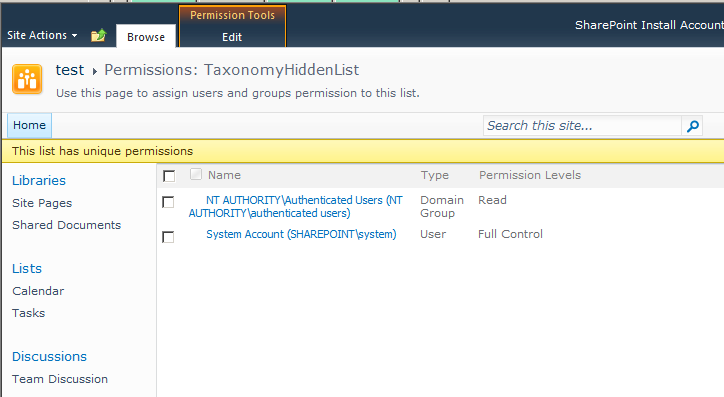
However, the permission listing does not take permissions on hidden lists in account. Specifically the Taxonomy Hidden List (which is used for caching fields from the managed metadata service application), has some interesting permissions:


(Reach this list at [site]/lists/taxonomyhiddenlist)

Removing the Authenticated Users from your site will also remove their permissions from this list. It will cause strange behavior in your site. List views with managed metadata columns will suddenly have blank values. Edit and view forms for list items may show unauthorized exceptions. However, for site collection administrators everything will continue to work, so the problem may not be directly obvious. And when the action and the moment problems are reported lay further apart, trouble shooting becomes a challenge.


Bottom line: never remove the SharePoint groups that have been created for you by features or deployment

Further reading: A good post on the inner workings of the Taxonomy Hidden List


Update: The same problem can occur with the masterpage gallery. The publishing feature sets some limited reading rights on the gallery for all authenticated users. Removing these permissions will result in access denied on edit mode for pages for all users, including associated owners. Only site collection admins will still be able to edit pages.

Rating